

An iPad can be more comfortable than a phone for live video conversations: the screen is larger and a stand leaves your hands free. But an app that runs on an iPhone is not automatically a tablet-optimized app. Before downloading, distinguish a genuine iPad listing from an iPhone-only product and a browser-based service.
Four options for different iPad chat styles
| Product | Access to consider | What it is useful for |
|---|---|---|
| Kiss Live Chat | Browser; official iPhone app is listed separately | Browse profiles and request a one-on-one call |
| Monkey | Official web version for iOS | Spontaneous video or text matching |
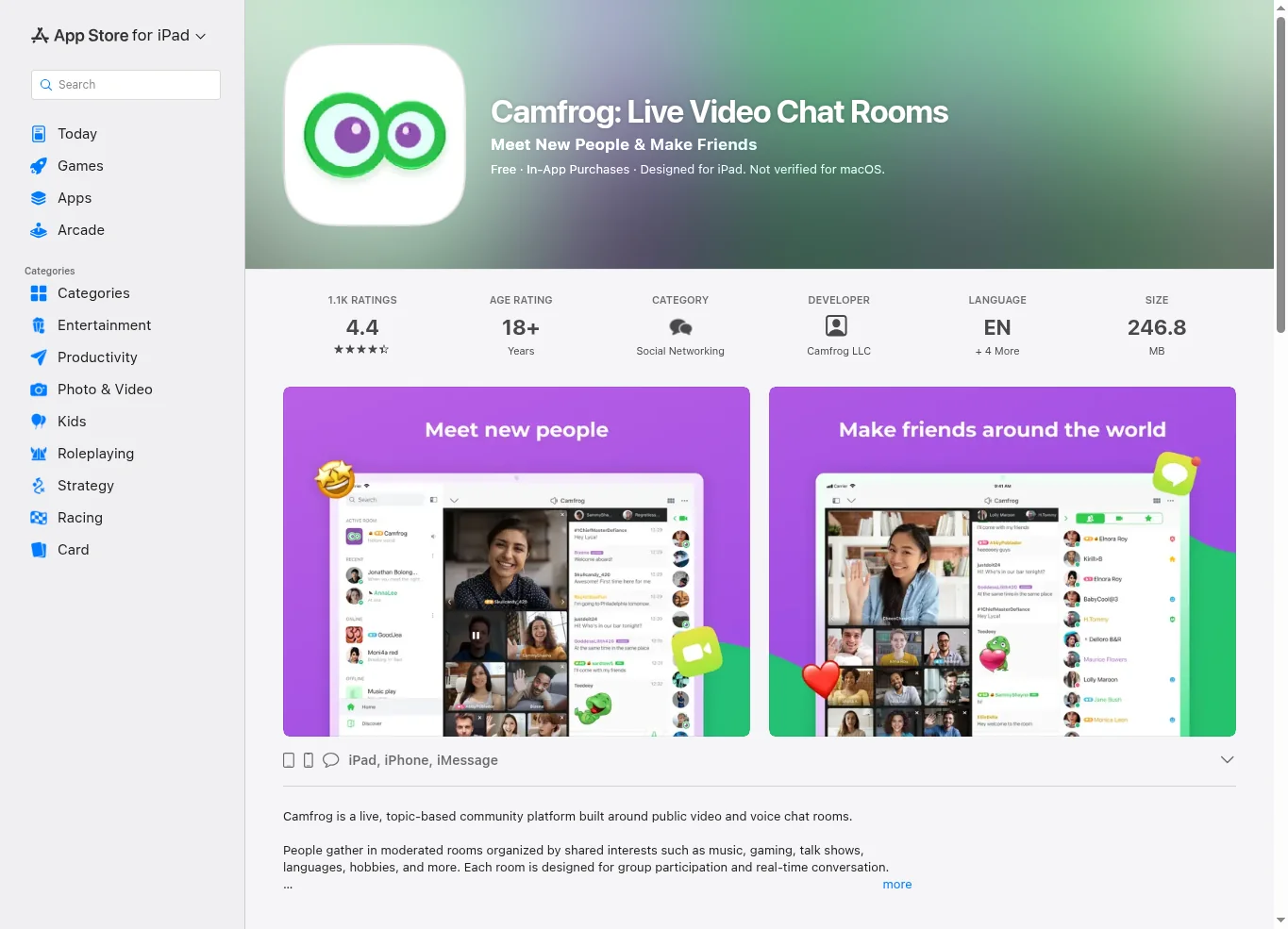
| Camfrog | App Store lists iPad support | Topic-based group video and voice rooms |
| CR Video Chat | App Store lists iPad support | Profile discovery and topic-based social conversations |
The sources below describe publicly listed compatibility and features, not an independent test on every iPad model. Store listings vary by region and may change.
Kiss: a browser option for choosing a person before calling
The Kiss homepage describes a browser-based social video experience. The official App Store listing is marked as designed for iPhone; do not treat that as a native tablet experience. On iPad, start with Safari and see whether the browser experience works with your current system and camera settings. Adults can browse profiles and request a call with Kiss Web.
Monkey: spontaneous browser chat
Monkey's official website directs iOS and desktop users to its web experience, while offering an Android app. That makes a browser entry worth considering on an iPad if you want random matching. Its website describes social login as necessary before matching, so do not expect an anonymous guest start.
Camfrog: topic rooms designed for larger displays
Camfrog's App Store page lists iPad and iPhone support. Its room-based design can be useful when you want to follow a group conversation rather than take a series of individual calls. The listing describes public topic rooms, text participation and audio or video options, plus in-app purchases. Check the Compatibility field against the iPadOS version on your device before installing.
CR Video Chat: a separate native tablet option
CR Video Chat has an iPad App Store listing. Its public description includes profile discovery and one-on-one or group interaction. Do not assume its features or purchases are identical to the classic Chatroulette website simply because of the similar naming.
How to set up video chat on an iPad
- Put the tablet on a stable stand and check the camera framing in landscape or portrait. Depending on the model, the front camera may be on a different edge.
- Update iPadOS and use a supported browser or the official store installation. Close another app that is actively using the microphone or camera.
- When a site asks for camera access, confirm the correct address and allow only the permissions necessary for the conversation.
- If permissions were previously denied, open Safari website settings or Settings > Apps > Safari on supported versions. Apple's iPad Safari guide explains camera and microphone controls.
- Make a brief test call before paying for a subscription or credits. Watch for sound routing, framing and connection problems.
A browser shortcut is not a native iPad application. It can make a frequently visited page easier to open, but cannot add features the browser version does not support.
Conclusion
Choose an iPad app for a tablet-designed room experience, or a browser service for quick access without installing another app. Verify compatibility on your own model before paying, and prefer the official entry rather than an unofficial download.
Quick answers
FAQ
Can I use an iPhone-only app on iPad?
Some iPhone apps may run in compatibility mode, but availability and layout vary. Read the current device listing before choosing it.
Is a browser video call always free?
No. Not needing an app download is different from not paying for calls or optional features.
What if my camera works in FaceTime but not in a browser?
Check the site's camera permission and close competing camera sessions. See camera and microphone troubleshooting.