

Quick answer
Yes, you can use Azar on a PC. Azar offers an official web version at azarlive.com that runs in Chrome, Firefox, Safari and Edge on Windows and macOS. You sign in with the same account you use on your phone (Google, Apple, Facebook or phone number), allow your camera and microphone, and start video matching. You do not need an emulator or an installer.
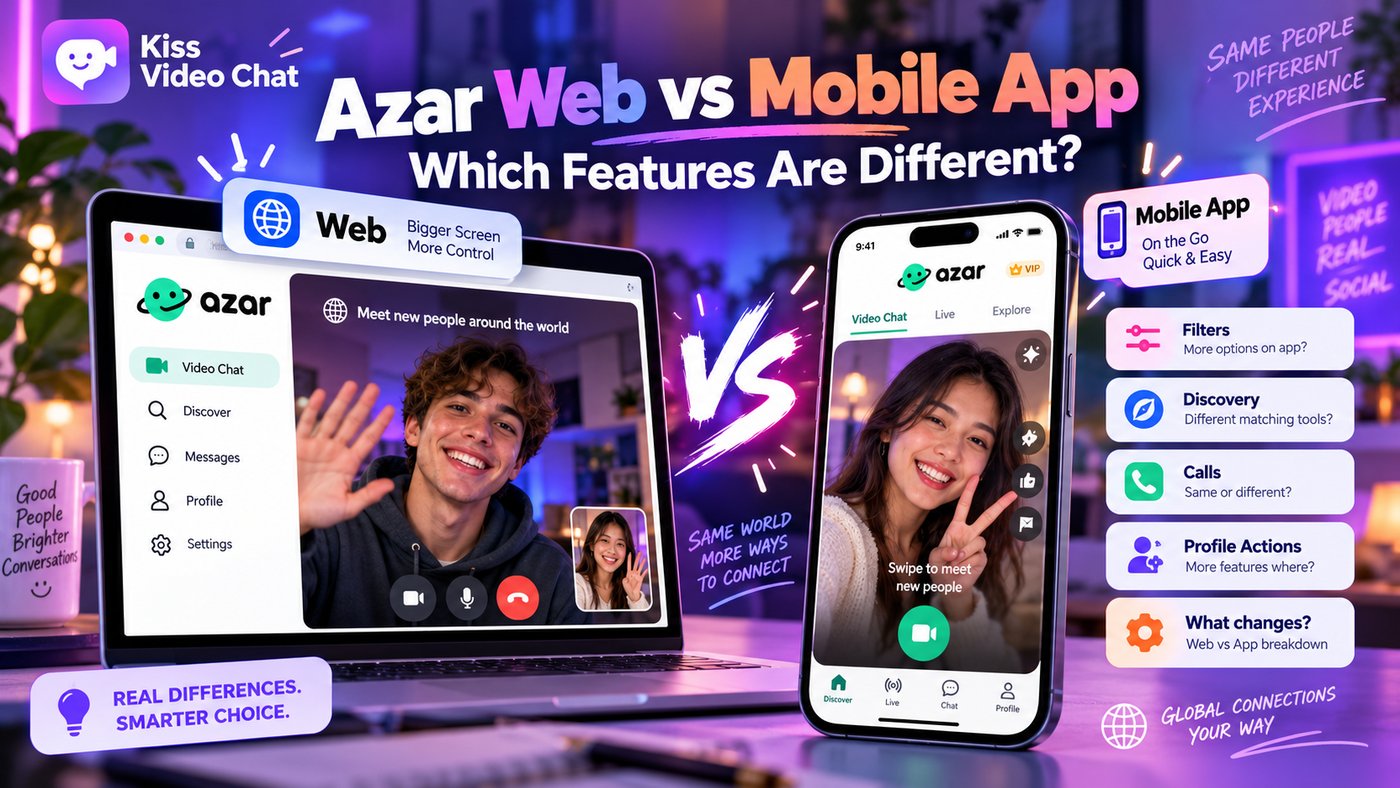
The trade-off: Azar Web is a simpler experience than the mobile app, and some matching features and payment options differ by platform. Our Azar Web vs mobile app breakdown covers those differences in detail.
How to use Azar on a computer
- Open azarlive.com in an up-to-date browser. Type the address yourself rather than clicking ads or "Azar PC download" portals.
- Log in or create an account. Existing users sign in with the same method as the app, so your profile carries over.
- Allow the camera and microphone when the browser asks. If you blocked them by mistake, click the icon to the left of the address bar, switch both to Allow and refresh.
- Go to Video Chat and start matching. According to Azar's help center, the Esc key ends a chat, and report and block tools are available during the call.
- Note the camera rule. Azar's own guide says there is no camera on/off button on the web; the camera stays on while you chat.
If the page does not load, Azar suggests updating the browser, trying another supported browser and disabling ad blockers or privacy extensions for the site.
Azar Web vs the phone app: what actually changes
Azar describes the web version as bringing the app to a bigger screen, with faster typing on a keyboard and gesture filters. In practice, these are the differences people notice first:
| Azar Web (PC / Mac) | Azar app (phone) | |
|---|---|---|
| Access | Browser, no install | App Store / Google Play |
| Matching | Click to start random video matching | Video matching plus app-only discovery features that vary by platform |
| Region / gender preference | Gems from the web Gem Shop | Depends on store and app version |
| Camera | Always on during chat | Controlled in the app |
| Account | Same login on both | |
Store listings and prices change often, so check your own screen before you buy anything.
Do you need an emulator or screen mirroring?
Several "Azar on PC" articles suggest running the Android app in an emulator or mirroring your phone to the computer. Both work in theory, but both are workarounds:
- Emulators need a lot of memory, can struggle with webcams and may trigger security checks on video apps.
- Mirroring tools still use your phone's camera, so you get the screen of a PC with the camera of a phone, plus another app with access to your device.
- Unofficial "Azar.exe" downloads are not from Azar. Avoid them.
Since Azar Web exists, the browser is the cleanest route for most people.
Azar Web not working? Quick fixes
| Problem | What to try |
|---|---|
| Black video | Allow camera in site settings; check Windows or macOS camera privacy settings; close Zoom or Teams |
| Page will not load | Update the browser, try another one, pause ad blockers for the site |
| Login loops | Clear the site's cookies, sign in with the same method you use in the app |
| Choppy video | Close heavy tabs, move closer to the router, plug in your laptop |
| Cannot find a feature | It may be app-only; check the app or Azar's help center |
Device-specific setup: Windows laptop, Mac.
Tips for better Azar video chats on a laptop
- Raise the laptop. Put it on a few books so the camera is at eye level instead of looking up at your chin.
- Light from the front. A window or lamp behind the screen makes a huge difference; backlight turns you into a silhouette.
- Use headphones. They stop echo and keep the conversation private from others in the room.
- Close heavy tabs. Video encoding uses CPU; fewer tabs means smoother video on older laptops.
- Prepare an opener. A specific question beats "hi". Our conversation topics list helps.
Staying comfortable on Azar Web
- Remember the camera is always on during web chats, so check your background before you click to match.
- Use the in-chat report and block tools if someone breaks the rules; ending a chat with Esc is instant.
- Keep personal contact details for later, once you know someone better.
- Only buy Gems from the official site; never through links sent in chat.
- On a shared computer, use a private window and sign out afterwards; see our shared computer checklist.
Another option in the browser: Kiss
If what you like about Azar is meeting people from other countries face to face, Kiss works in a desktop browser as well, without making you create an account first. Open kisschat.live, choose Visitor, allow your camera and press start.
- Language and country filters help you find people who speak your language or live somewhere you are curious about.
- Browse or match: pick someone from the people online, or let Video Match surprise you.
- Clear costs: the first minute of each new 1-on-1 call can be free, then calls continue with coins. The app also offers an optional VIP membership with extra perks such as free calls and monthly coins; it is never required to start chatting.
See how they compare on our Azar alternative page or in Azar alternatives.
Conclusion
Azar on PC is official and easy: go to azarlive.com, sign in with your app account, allow the camera and click to match. Expect a simpler experience than the app and check which features and payments apply on the web. If you want an even lighter start on your computer, try Kiss as a Visitor.

Add Kiss to your home screen
No download needed: the Kiss web app opens full-screen from an icon, like an app.
- Android · Chrome: ⋮ menu → “Install app” or “Add to Home screen”
- iPhone · Safari: Share → “Add to Home Screen”
Prefer the app? Get the iPhone app
Quick answers
FAQ
Is there an official Azar app for Windows 10 or 11?
Azar offers an official web version at azarlive.com that runs in your browser on Windows and Mac. You do not need a desktop installer.
Can I log in to Azar Web with my phone account?
Yes. Azar Web uses the same login methods as the app, such as Google, Apple, Facebook or phone number, so your profile carries over.
Can I turn off my camera on Azar Web?
Azar's help center says there is no camera on/off button on the web version; the camera stays on during a chat.
Are Azar filters free on PC?
On the web, Azar offers region and gender preferences through Gems bought in its web shop. Options and prices change, so check on screen.
Is there a similar site that works in the browser without an account?
Kiss lets you start as a Visitor at kisschat.live on a computer or phone, with language and country filters.