
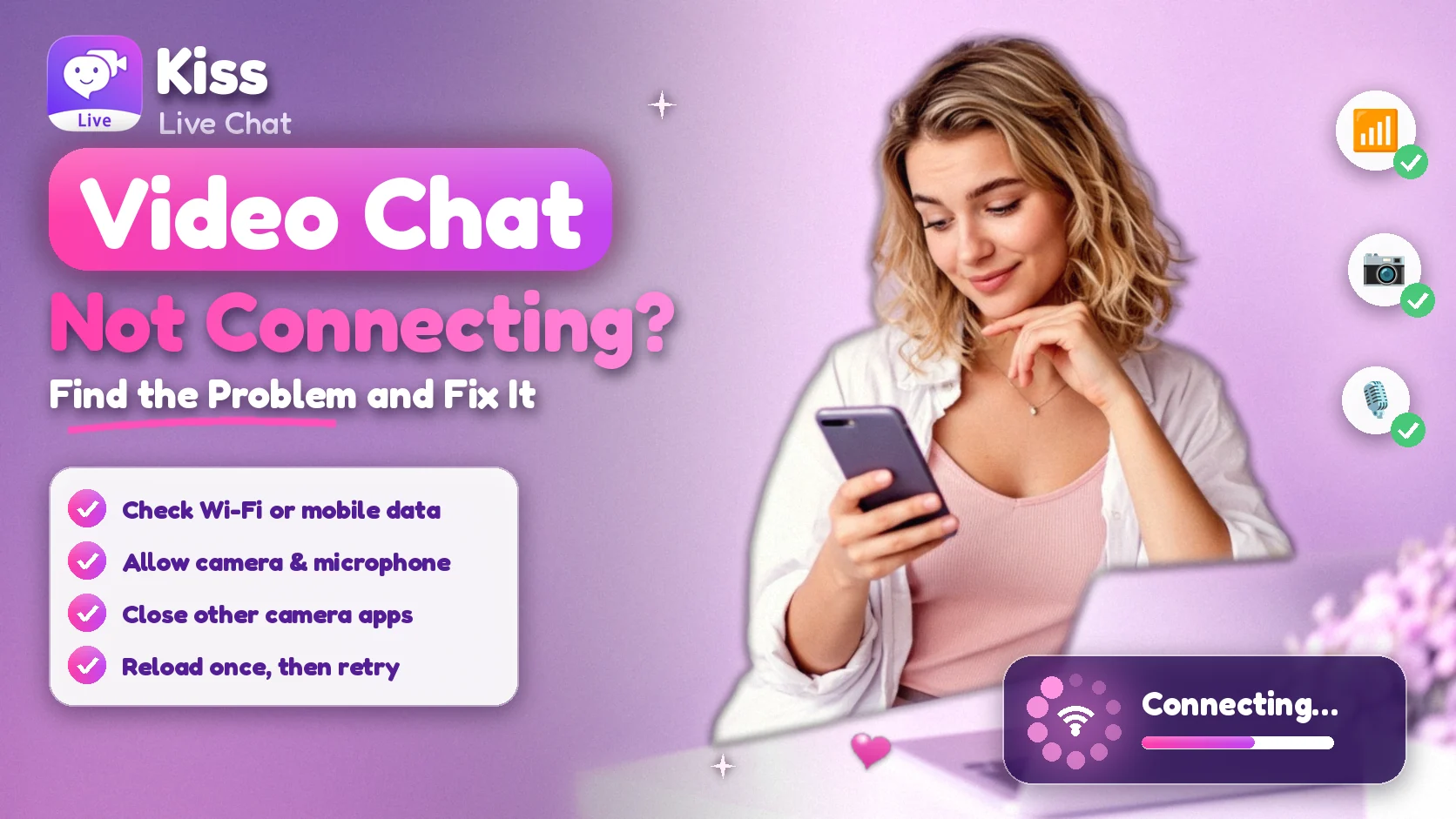
You can open a video-chat site, see profiles and even click the call button—but the call never starts. Maybe the screen says “Connecting,” the other person never appears, or the call drops as soon as it begins. Those symptoms have different causes, and endlessly refreshing the page usually isn't the fastest way to fix them.
Start with this distinction: Can you open the website? Can the browser use your camera and microphone? And can it establish a connection to the other person? Treat those as three separate checks. A working camera does not prove the network can carry a call; a working internet connection does not automatically grant camera permission.
This guide focuses on calls that fail to connect or keep dropping, rather than a camera-only black screen. For broader device settings, see the Windows laptop setup guide.
First: match the symptom to the likely cause
| What you see | Check first | Why it helps |
|---|---|---|
| The website will not load | Connection, URL, browser | The call cannot start before the site loads |
| “Connecting” keeps spinning | Network stability, VPN, firewall, available partner | Signaling or media connection may not complete |
| Call opens, but camera is black | Browser and device camera permissions | The call may connect without sending video |
| The other person hears nothing | Mic selection, mute controls, OS permissions | Audio can fail independently |
| Call ends immediately | Network changes, app state, other person's availability | A call can end for reasons unrelated to your camera |
| A payment/account prompt appears | Account state or displayed product rules | Not every blocked action is a technical outage |
Don't infer the cause from one message alone. These are checks, not a diagnosis of the platform's servers.
The 90-second reset that solves many ordinary failures
- End the failed attempt rather than tapping Call repeatedly.
- Check another normal website to confirm the device still has internet access.
- Change one thing at a time. Switch from unstable Wi-Fi to mobile data, or back again, if available. This separates a local network problem from a browser issue.
- Close duplicate chat tabs and competing camera apps. A meeting app, streaming tool or another browser tab may already be using the camera or microphone.
- Reload once, then begin a new attempt. When prompted, allow only the permissions needed for the call.
- Try another available person if the interface allows it. Someone being busy or declining is not the same as your connection failing.
If it works after switching networks, investigate Wi-Fi or network policy before changing your account. If it works in another browser, look at browser permissions, extensions or outdated settings. If it fails everywhere, record the symptom and check official status or support channels.
Why a fast internet speed test isn't enough
Video calls need a steady connection in both directions, not only a high download number. A network can stream video smoothly yet struggle with live conversation because of packet loss, jitter, limited upload capacity or frequent switching between Wi-Fi and mobile data.
Try moving closer to the router, pausing heavy uploads and leaving an unreliable public network. If you use a VPN, enterprise proxy or filtered Wi-Fi, test a permitted direct connection where possible. Some workplace, school and public networks restrict real-time communication. Don't bypass network policies; use your personal connection instead.
When a call drops the moment you move between rooms, switching from one Wi-Fi access point to another can also interrupt it. Stay on one stable network for your test.
Camera and microphone permissions: the separate layer
If the call screen opens but no one can see or hear you, review permissions. In Chrome and Edge, open the site settings from the icon beside the address bar and inspect Camera and Microphone. On an iPhone, Safari's site permission prompts and iOS privacy settings can both matter. On Android, browser permissions and the phone's app-level camera/microphone access can both matter.
Select the actual headset mic or webcam you intend to use. Remove a disconnected Bluetooth headset as the default input if it keeps stealing the audio. Then retry. If a hardware privacy shutter is closed, no browser setting can make a picture appear.
A quick self-test in the phone's camera app or the computer's built-in camera tool can help separate hardware trouble from website trouble. Be careful not to leave the test app running when you return to the call.
If the call works for ten seconds, then drops
Short-lived calls often point to connection stability or device resource pressure. Close large downloads, battery-intensive apps and extra browser tabs. If your phone is overheating or in an aggressive battery-saving mode, give it a chance to recover. On a laptop, plug it in and avoid putting the browser in the background during your test.
Also consider the human side: a recipient may decline or end a call. A quick disconnect alone isn't proof that your account is broken. The useful question is whether the same failure repeats with multiple available people on different networks.
When the problem is not technical: entry and payment prompts
On Kiss Web, the published experience supports a guest entry. Each new one-on-one call includes a free first 60 seconds, and continuing after that uses coins. If you are asked to sign in before a purchase, or shown a coin prompt when you want to continue, that may be part of the normal product flow—not a failed video connection.
Before tapping Purchase, confirm what the screen says about the action, current rate and your account. Do not buy coins just to troubleshoot a spinning connection screen. Coin balances and VIP membership won't repair a blocked camera permission or unstable network. Read how Kiss coins work if the call has already reached the paid continuation step.
A practical Kiss Web troubleshooting sequence
- Open the official Kiss website and follow its Web entry to kisschat.live.
- Choose Visitor/guest mode if that option appears for you.
- Confirm the browser allows camera and microphone access when a call needs them.
- Look at online profiles or the available matching feature; choose an available conversation rather than testing an old, idle tab.
- If the call stays on Connecting, stop and retry on a stable network.
- If the issue persists, test a modern second browser on the same device; don't change account settings at the same time.
- If all attempts fail, use Kiss Contact or the official in-product support path and report the exact step that fails.
You shouldn't have to send screenshots of personal conversations or share payment details to explain a connection bug. Redact private information before submitting logs or screenshots.
What to include in a useful support report
A clear report is better than “it doesn't work.” Include the local time and time zone, device model, operating system, browser name and version, whether you used Wi-Fi or mobile data, and the exact message on screen. Say whether the page loaded, whether permission was granted, and whether the call failed before or after the other participant appeared. Note if you tried another network or browser. Avoid uploading passwords, verification codes, full payment numbers or another user's personal information.
The bottom line
When video chat won't connect, narrow it down in order: site access → browser permissions → network stability → partner availability → account or payment prompts. That prevents an ordinary camera or Wi-Fi problem from turning into unnecessary reinstallations or purchases. Once the connection works, you can focus on the part that matters—having a good conversation.
Quick answers
Frequently asked questions
Why is my video chat stuck on “Connecting”?
A weak or restricted network, conflicting browser state, a temporary service issue or an unavailable recipient can all produce a similar symptom. Test another normal site, one stable network and a fresh call before guessing.
Can my camera work even when the call fails?
Yes. Camera permissions and a live peer-to-peer or server-mediated media connection are different requirements. A preview image does not guarantee the call will connect.
Should I reinstall the app or buy coins?
Not as a first fix. For Kiss Web, try browser and network checks first. A continuation coin prompt is different from a technical failure; buying coins does not solve a connection outage.
Does VPN software affect video calls?
Sometimes. VPN routing, corporate filters and public Wi-Fi policies can affect real-time traffic. Test an authorized alternative network where possible.
What should I do if every call fails?
Contact official support with device, browser, time, network type and a description of the exact failure. Keep sensitive account and payment information out of the report.