

What you need for random video calls on a PC
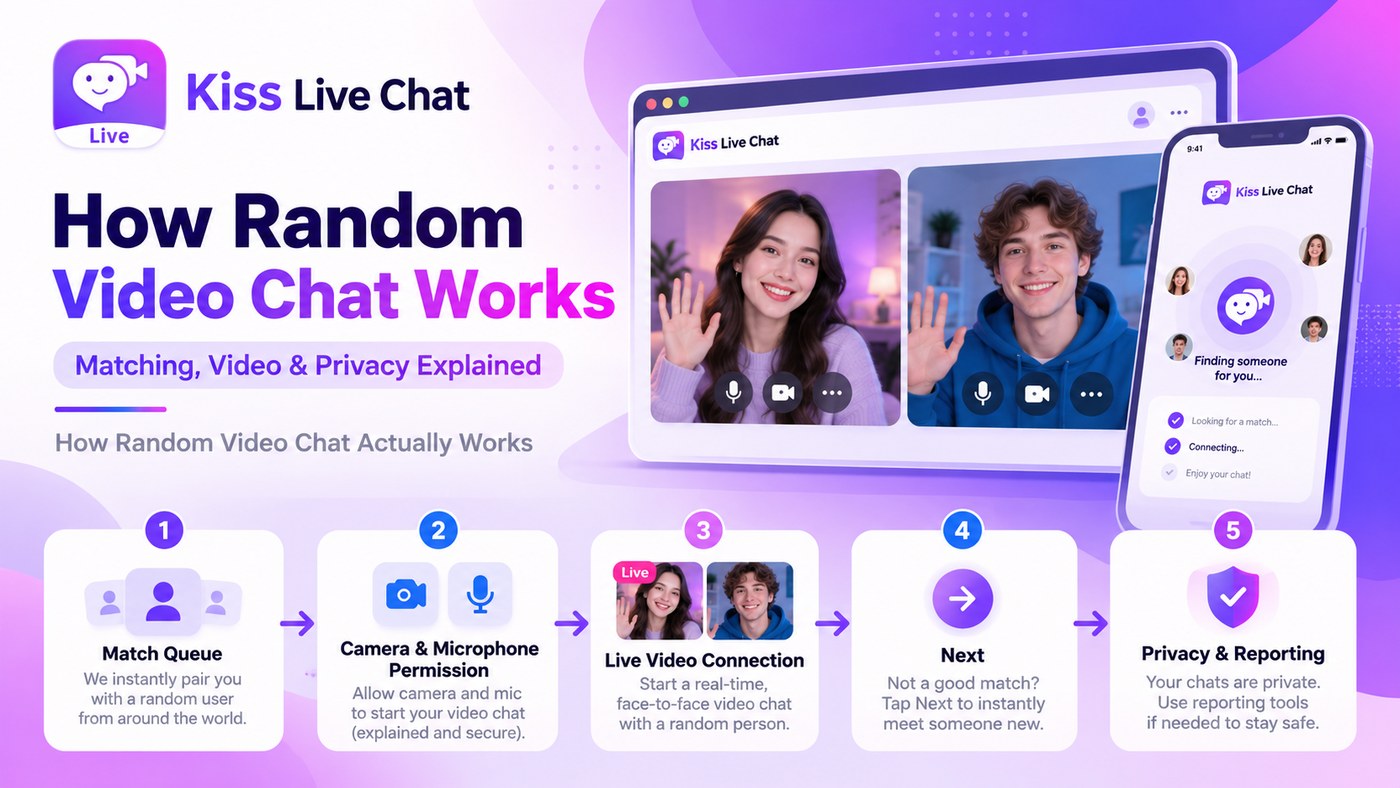
A random video call is a live one-to-one conversation with someone you have not chosen in advance. On a computer, the requirements are modest:
- A webcam and microphone. Most laptops have both built in. Desktop users need a USB webcam; many include a microphone.
- A current browser. Chrome, Edge, Firefox and Safari all support real-time video through WebRTC. Update before you start.
- A stable connection. Wired Ethernet or a strong Wi-Fi signal beats a crowded network.
- Headphones (recommended). They remove echo and keep the conversation private.
That is it. You do not need an Android emulator, a special plugin or an installer.
How to choose a random video call site that works on desktop
Many random chat services were designed phone-first. Before you settle on one, check five things:
- Real desktop support. Some services only offer a web version on certain devices or push you to an app. Look for a site that runs fully in a desktop browser.
- Account rules. Some sites need no account, some ask for a free login, some offer a guest start. Decide how much setup you are willing to do.
- Filters. Language and country filters save a lot of skipping. Check which filters are free and which are paid.
- Moderation and tools. Visible rules, report and block buttons and an 18+ policy are the minimum.
- Clear costs. "Free" often means free to start. Read what happens after the first call or the first few minutes.
For a wider comparison, see best random video chat sites and our guide to Omegle alternatives for PC.
A 3-minute setup checklist
- Test your camera locally. Windows Camera app or macOS Photo Booth. If it works there, the browser can use it.
- Grant permissions. Allow camera and microphone for the site when asked. If nothing happens, check Windows Settings → Privacy & security → Camera, or macOS System Settings → Privacy & Security → Camera.
- Pick the right devices. If you have several cameras or microphones, choose the correct one in the site settings icon next to the address bar.
- Close video apps. Zoom, Teams and Discord can hold the webcam.
- Frame yourself. Eyes about a third from the top of the image, light in front, tidy background.
Stuck on a black screen? Our camera troubleshooting guide walks through every browser.
Get clearer video and sound on a computer
- Light beats megapixels. A basic webcam facing a window looks better than an expensive one in a dark room.
- Raise the camera to eye level. Stack books under a laptop or mount a USB webcam on top of the monitor.
- Close bandwidth-heavy tabs. Streaming video, cloud backups and big downloads compete with your call.
- Prefer wired internet when you can, or sit closer to the router.
- Keep hardware acceleration on. It is the default in most browsers and helps video run smoothly.
More tips in how to look good on video chat.
Common problems on PC and how to fix them
| Problem | Likely cause | Fix |
|---|---|---|
| Black screen | Permission blocked | Allow camera in site settings and in Windows/macOS privacy settings |
| "Camera in use" | Another app holds the webcam | Quit Zoom, Teams, Discord, OBS |
| Echo | Speakers feed the mic | Use headphones |
| Frozen picture | Unstable Wi-Fi or busy CPU | Close tabs, get closer to the router, plug in |
| Wrong camera | Browser picked the built-in one | Choose the device in site settings |
Random call etiquette that keeps conversations going
A random call lasts as long as both people enjoy it. A few small habits help:
- Smile and say hi first. Silence is the fastest way to get skipped.
- Ask something specific. "What is the weather like where you are?" works better than "how are you".
- Use text chat when audio is weak or when you do not share a language.
- Leave politely. A quick "nice talking to you" before skipping is kind; see how to end a video chat politely.
- Protect your details. No full name, address, school or workplace in the first conversations.
Free vs paid on random video call sites
Almost every service is free to start, but "free" covers very different models:
- Free core, paid filters: random matching costs nothing; gender or location preferences are paid.
- Free first minutes, then credits: a short free period per call, then coins or credits.
- Subscriptions: weekly or monthly plans that unlock extras.
None is wrong, but you should know which one you are using before you spend anything. Read the pricing page, not just the homepage headline.
Random video calls on Kiss, from your computer
Kiss runs in the browser on Windows, Mac and Chromebook as well as on phones. To try it:
- Open kisschat.live.
- Choose Visitor to start as a guest.
- Allow your camera and microphone.
- Set a language or country filter if you like, then start.
Browse the girls who are online and choose who to call, narrowing by language and country if you like. The first minute of each new 1-on-1 call can be free; after that, calls continue with coins. Report and block tools are in every call, and Kiss is for adults 18+ only.
If you are staying on a computer, this independent list of online video chat sites that work in a browser is another place to compare desktop-friendly options.
Summary
Random video calls on a PC need nothing more than a webcam, a current browser and a few minutes of setup. Choose a site that genuinely supports desktop, check what is free, grant permissions at both the site and system level and light your face from the front. Then start a random call on Kiss and say hi.

Add Kiss to your home screen
No download needed: the Kiss web app opens full-screen from an icon, like an app.
- Android · Chrome: ⋮ menu → “Install app” or “Add to Home screen”
- iPhone · Safari: Share → “Add to Home Screen”
Prefer the app? Get the iPhone app
Quick answers
FAQ
Can I make random video calls on a PC without downloading an app?
Yes. Browser-based services run in Chrome, Edge, Firefox or Safari. You only need to allow the camera and microphone.
Which browser is best for random video calls on PC?
Any current version of Chrome, Edge, Firefox or Safari works for most sites. If one misbehaves, try another before blaming your camera.
Do I need an external webcam?
Not on most laptops. Desktop computers usually need a USB webcam; one with a built-in microphone keeps setup simple.
Why is my video blurry on PC?
Usually poor lighting or a busy connection. Face a window or lamp, close bandwidth-heavy tabs and move closer to the router or use a cable.
Does Kiss work on a desktop computer?
Yes. Open kisschat.live, choose Visitor, allow your camera and start a random 1-on-1 call.